Your Bank Statement Now Imports While You Do Something Else
 Dennis Vymer
A few weeks ago I wrote myself a ticket about the bank statement import. The description said the whole thing was "honestly a mess". Loads of clicks, popups on top of popups, and fixing categories row by row.
I wrote that about my own app. And I was right.
Importing a month of payments is the most boring job in budgeting, and the one nobody can skip. If it hurts, people stop, and the budget becomes a nice chart of last March. So this week I rebuilt it from the ground up.
Drop the file, keep working
Before, an import was ten steps and two moments where you sat and watched a spinner. Then a review table where you read every single row.
Now it's three moments:
- Drop your statement. PDF, CSV or Excel. Several files at once if you like, anywhere on the budgeting pages.
- Keep doing whatever you were doing. The import runs in the background. A small chip in the header shows how far it got, and a little animation shows your statement being read, sorted and filed away.
- Answer the few payments the app isn't sure about. Usually a handful. Then you're done.
The rows are saved first, and if something looks off, Undo takes the whole import back in one click.
The import window went on a diet too. It used to have two titles, two descriptions and a list of the whole week's imports. Now it asks for one thing: the file.
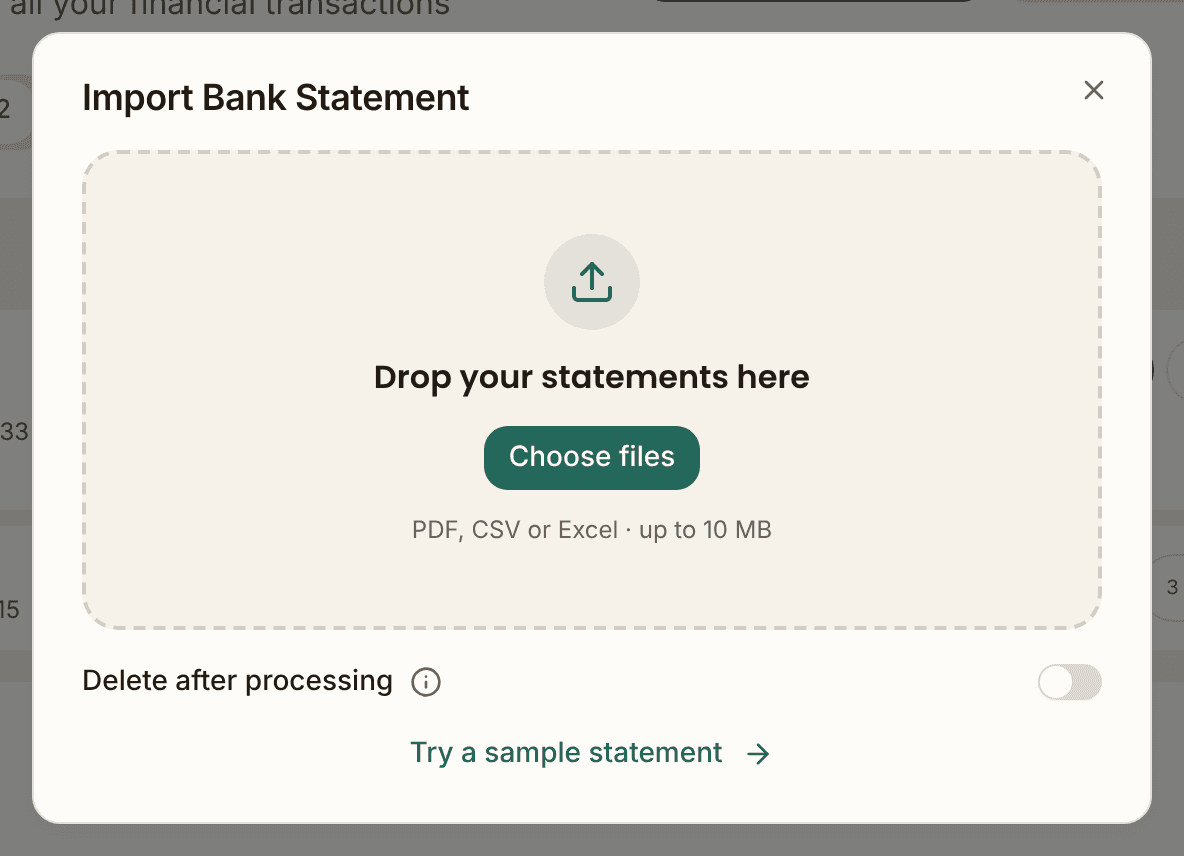
Big exports work now too. Anything over 1,000 rows used to be refused. In testing, an 8,850-row bank export went through in 41 seconds.
One answer per merchant, not per row
Here's the part I'm proudest of. When the app isn't sure about something, it no longer asks you about each payment. It asks about each merchant.
Seven payments at the same supermarket are one question, not seven. On the Transactions page there's now a "To check" switch next to "All". It only shows up when something is waiting for you, and it opens by itself after an import. Inside are two short lists: "Who is this?" for merchants the app has no clue about, and "Looks right?" for its best guesses, with one "All correct" button when they are.
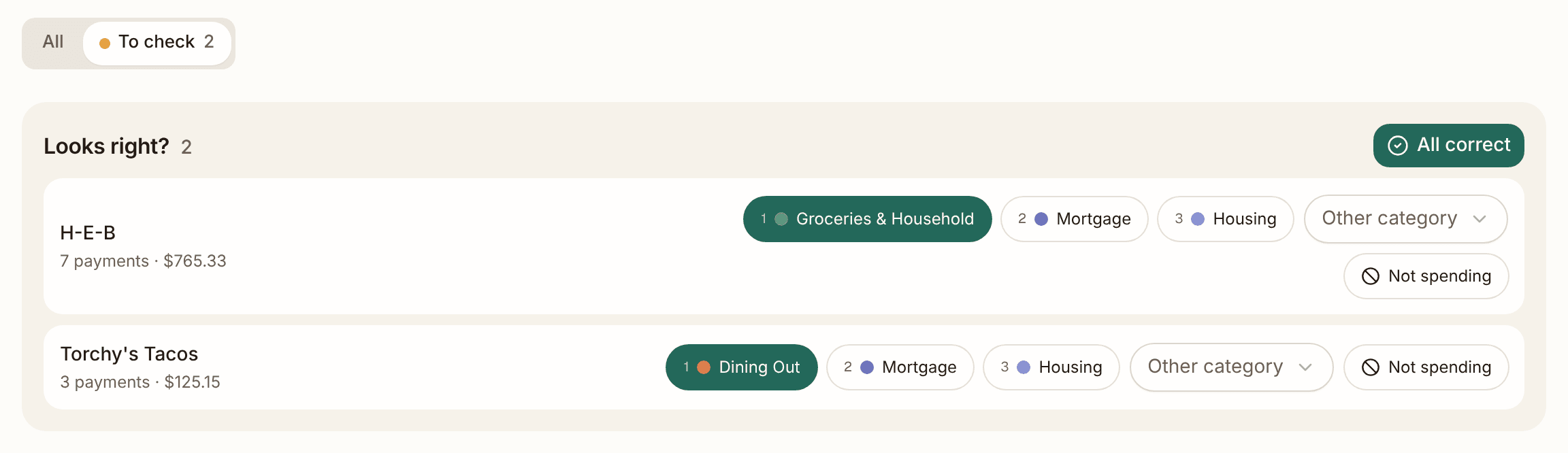
Try it in the demo: click "To check", or open Import Statement and use the sample statement.
And every answer you give is remembered. Once you've put the same merchant in the same category twice, the app does it quietly from then on. On one bank account in testing, the first month took 11 taps to settle. The second month took 3.
Across 30 real statements with 4,421 payments, settling everything took 188 taps. That's about 4 taps per 100 payments. The old flow needed 35 to 40 clicks per 120 rows, plus reading all of them.
Curious what it has learned about you? Settings, Budgeting, then "Manage patterns" under Category learning shows every merchant it remembers, and you can change any of them.
Your partner can have their own login
Money in our house isn't a one-person job, and I'd guess it isn't in yours either. So you can now invite one family member to your MFFT account. They get their own login, with a password or Google, and work in the same budgets, net worth, investments and plan as you. No more sharing one password.
Settings, then Family. Type their email, confirm it's really you with your password, and they get a link. The link works once, for 24 hours, and only for that address. Things like the account email and base currency stay yours. You can remove them any time, and they can leave on their own.
Smaller things you'll notice
- Settings save themselves. No Save button. Each field says "Saved" next to its label.
- Dates were a day early. If you live east of UTC (hello, Czechia and Germany), some saved files showed yesterday's date. Fixed.
- You can change your broker. A reader wrote in: they'd filled in the broker on a portfolio account and couldn't find where to change it. There was nowhere. Now the account popup has "Edit name and broker".
What's next
Last week I said living off your investments was next. I'll be straight: it's parked for now. The import was the thing that hurt every single month, and I'd rather fix what you use every month first. Up next is the same treatment for portfolio imports, with real broker files, and a home in Settings for older imports so Undo is always within reach.
The lesson
While testing with real statements I found a UK statement where all 92 payments had been saved in Czech crowns. Nobody chose that. When a statement didn't say its currency, the app quietly fell back to CZK. The same habit lived in the categories: anything the app couldn't place landed in "Miscellaneous / Other", which looks like an answer but isn't one.
Both are gone. A payment the app can't sort now stays empty and shows up in "Who is this?", and a statement's currency comes from the statement. A blank field is honest. A confident wrong guess quietly ruins your monthly numbers.
Drop a statement in this week and tell me how many taps it took you. I'm curious.
Stay updated
Get notified when we publish new articles.
Ready to apply this?
Start tracking your finances today and put these tips into practice.
- Import bank statements in seconds
- AI-powered categorization
- Beautiful visualizations
- Set and track financial goals
Free Financial Tools
Related posts

Your Rebalancing Plan Won't Tell You to Sell a 1% Holding Anymore
A reader's rebalancing plan told her to sell a holding she wanted to keep. This week's fixes all started with emails like hers: decimal targets, purchases you can finally see in Profit & taxes, a home that no longer pays you imaginary rent, and overlap badges on the heat map.

Your Dashboard Now Answers One Question: How Am I Doing?
The old dashboard is gone. The new home page sums up your net worth, last month and the road to your goals on one screen, showing only what you actually track. Plus the promised holdings heat map and a categorising prompt that stopped nagging.

Your Budget Now Shows the Whole Year. The Old Page Is Gone.
The budget page now shows your whole year on one chart, spreads yearly bills across the months they cover and handles foreign currency properly. Net worth got a growth chart with a milestone line, and the portfolio finally counts every holding.